YOUR FIRST STEPS
Get your bearings.
Step by step.
Add a medication, check reminders, support a loved one: choose where to start.
YOUR TRACKING
Add your
first medication.
Check the profile
Choose your profile, or the profile of the person you support with the necessary permissions.
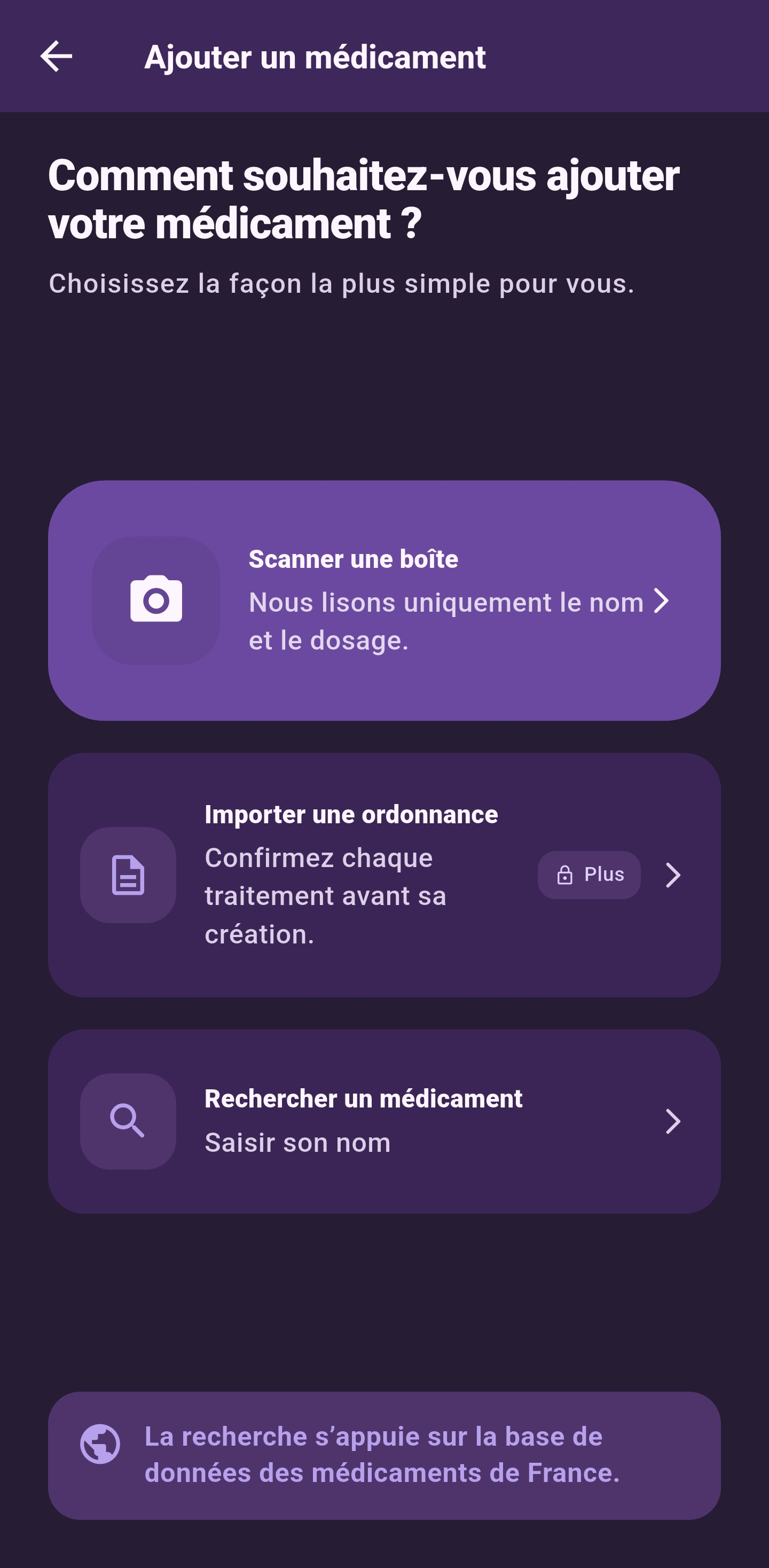
Open “Medications”, then “+”
Start adding a medication from the list.
Choose a method
Scan a box to read its name and strength, search by name, or use prescription import with Plus. When importing, each medication must be confirmed before it is created.
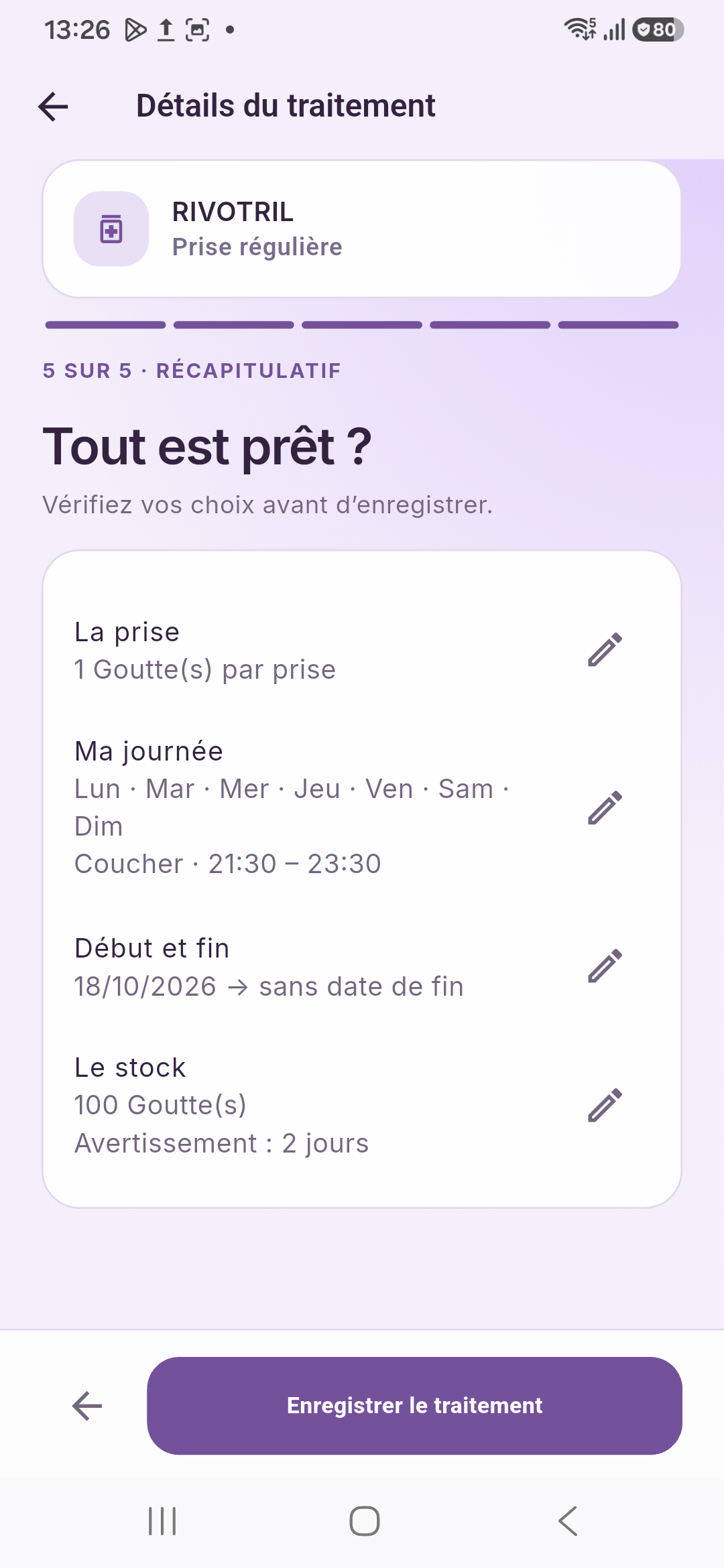
Set up your tracking
Choose regular or as-needed tracking. Check quantities, days and dates against the information provided as part of your care. Set up stock tracking if you wish to use it.
Review before confirming
Check the summary, then find the medication in the correct profile’s list.
See a medication summary
Find the saved medication in the list
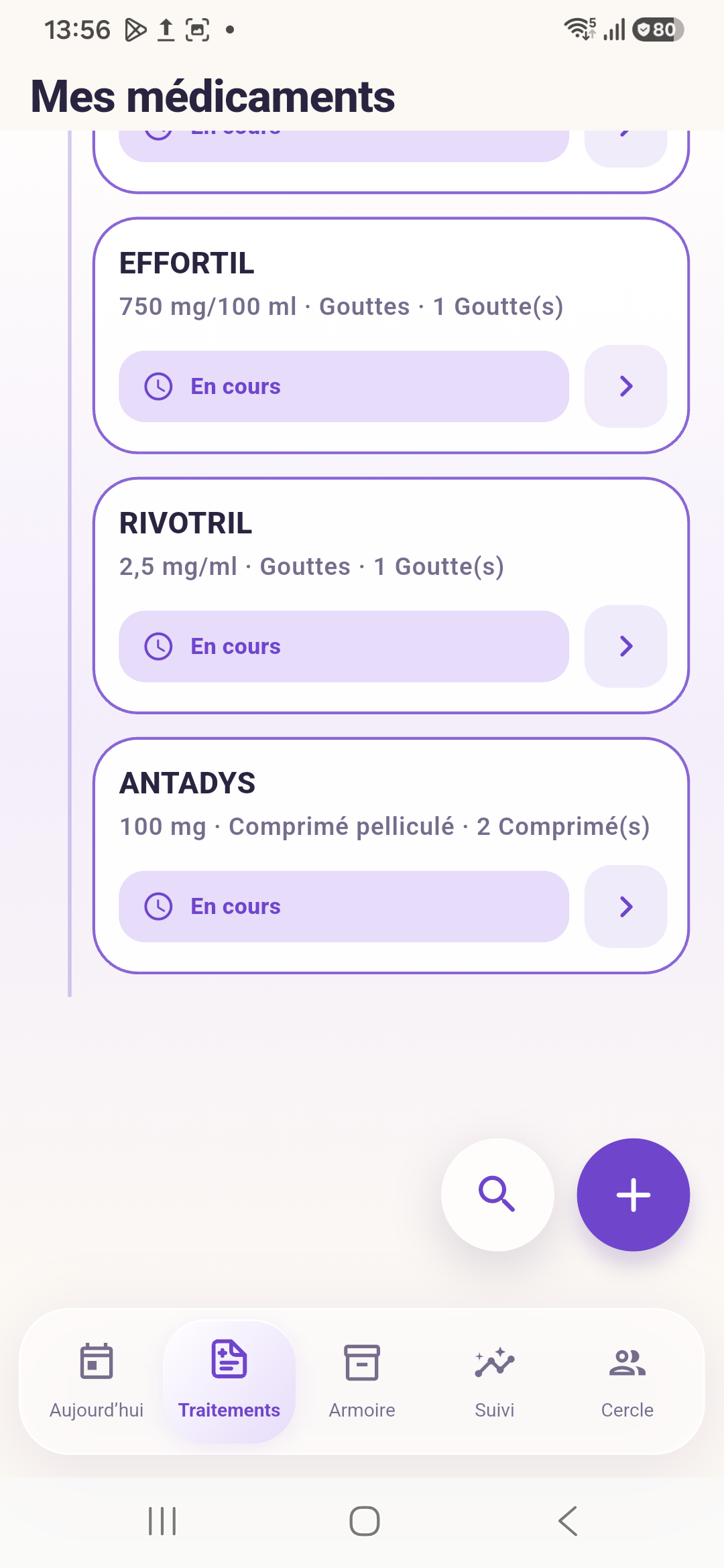
My medication does not appear
Check the profile and list filters, then try refreshing the list normally before adding the medication again.
YOUR PHONE
Check
your reminders.
Check the medication’s scheduled times
Reminders use your tracking settings. Check the medication and its time slots.
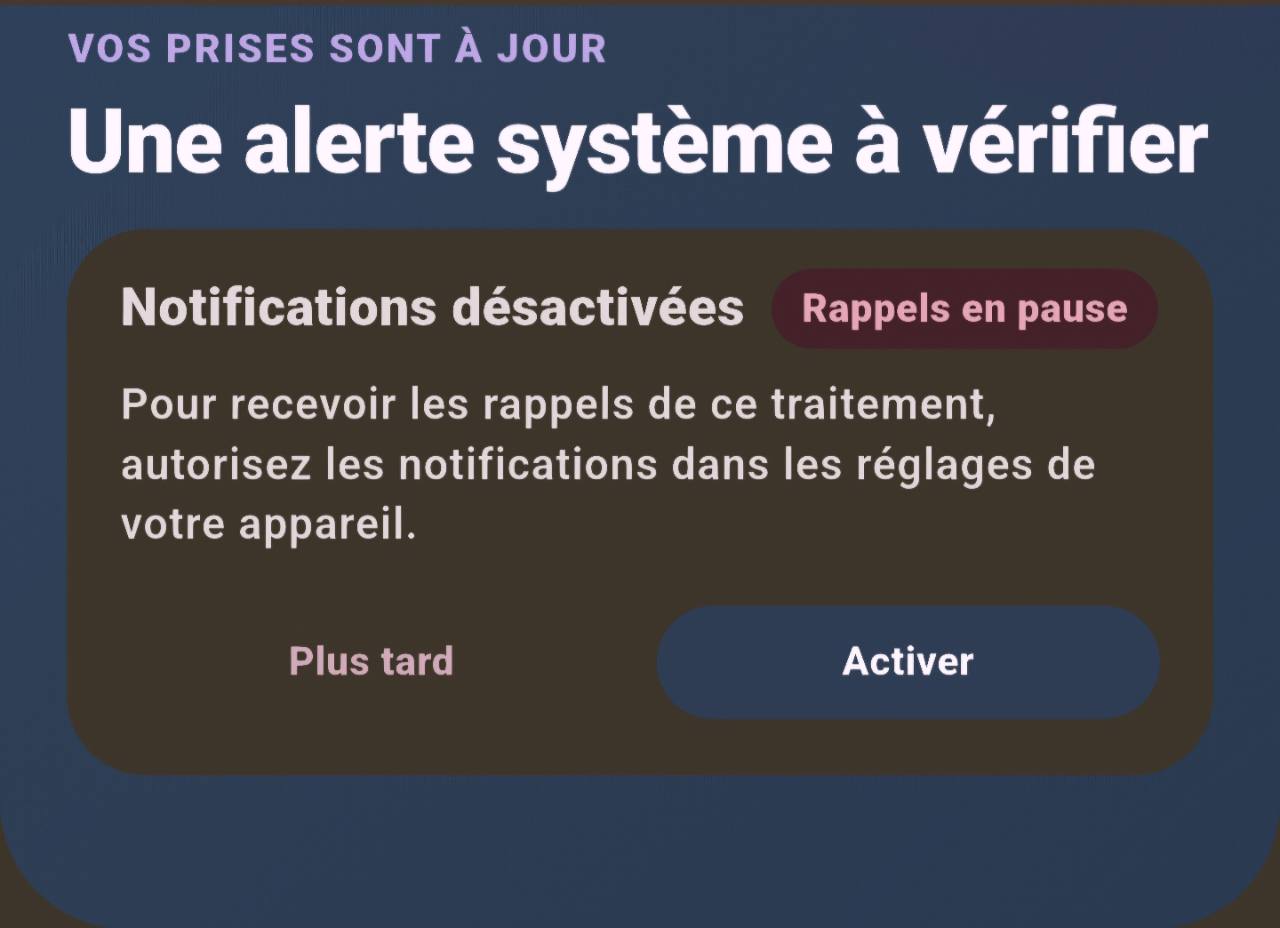
Allow notifications
If Kwesī shows “Notifications disabled”, check permissions in your phone’s settings.
Check your phone’s settings
Check sound, silent mode and notification settings that may affect whether you receive or see a reminder.
Distinguish reminders from recorded doses
Receiving a reminder does not confirm a dose. Record what you actually did in the app.
THE PEOPLE AROUND YOU
Make room
for your loved ones.
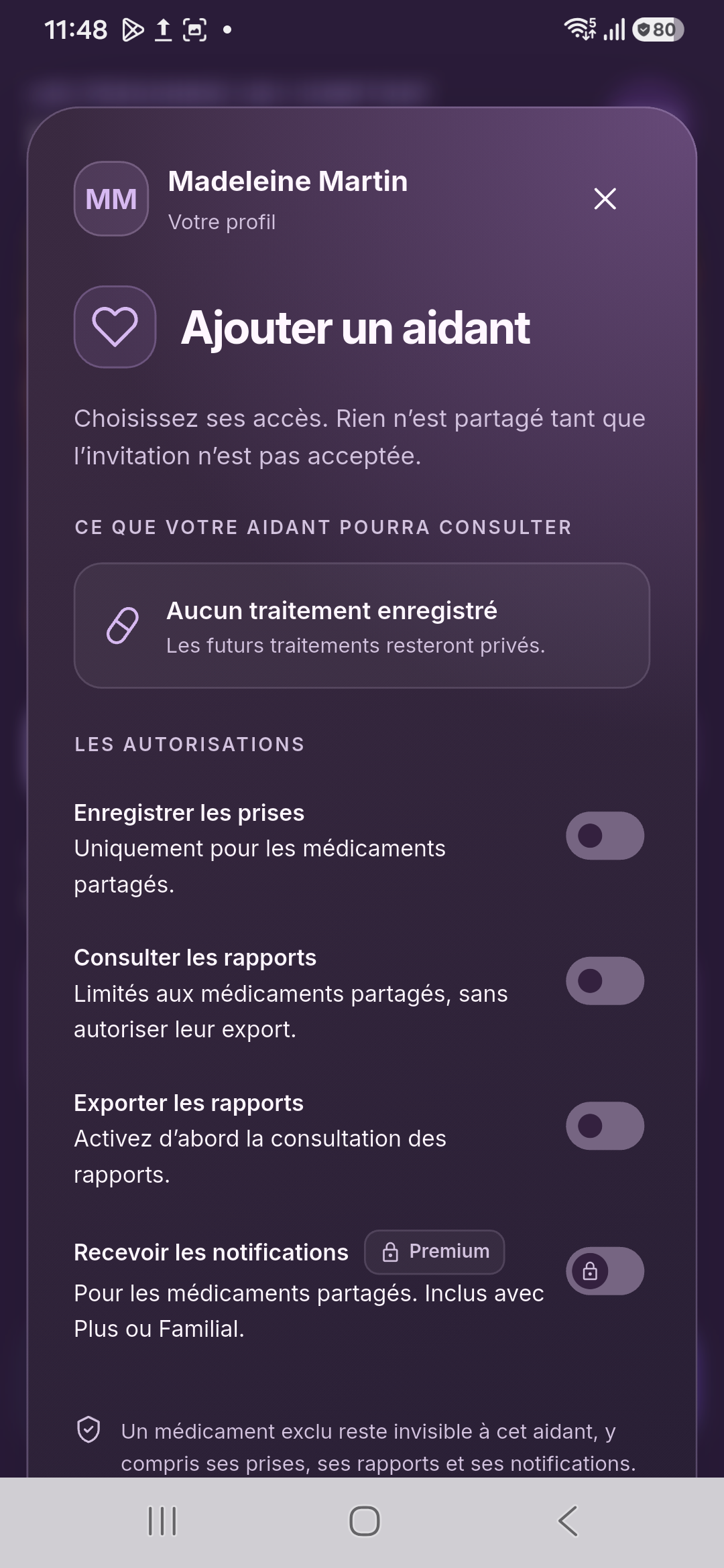
Open “Circle”
Find the people and relationships on your account.
Choose the relationship type
The “Add” button shows the available options. A child’s profile and sharing with an independent adult follow different steps.
Choose access permissions
Review the shared information and permitted actions. Viewing information, recording a dose and exporting a report are separate permissions.
Invite your loved one
To share with an adult, follow the invitation process and wait for them to accept before using shared access.
Open your loved one’s tracking
From their details, use “View their profile” when this button is available for your relationship. Check their name before viewing information or recording a dose.
Find a relationship in your circle
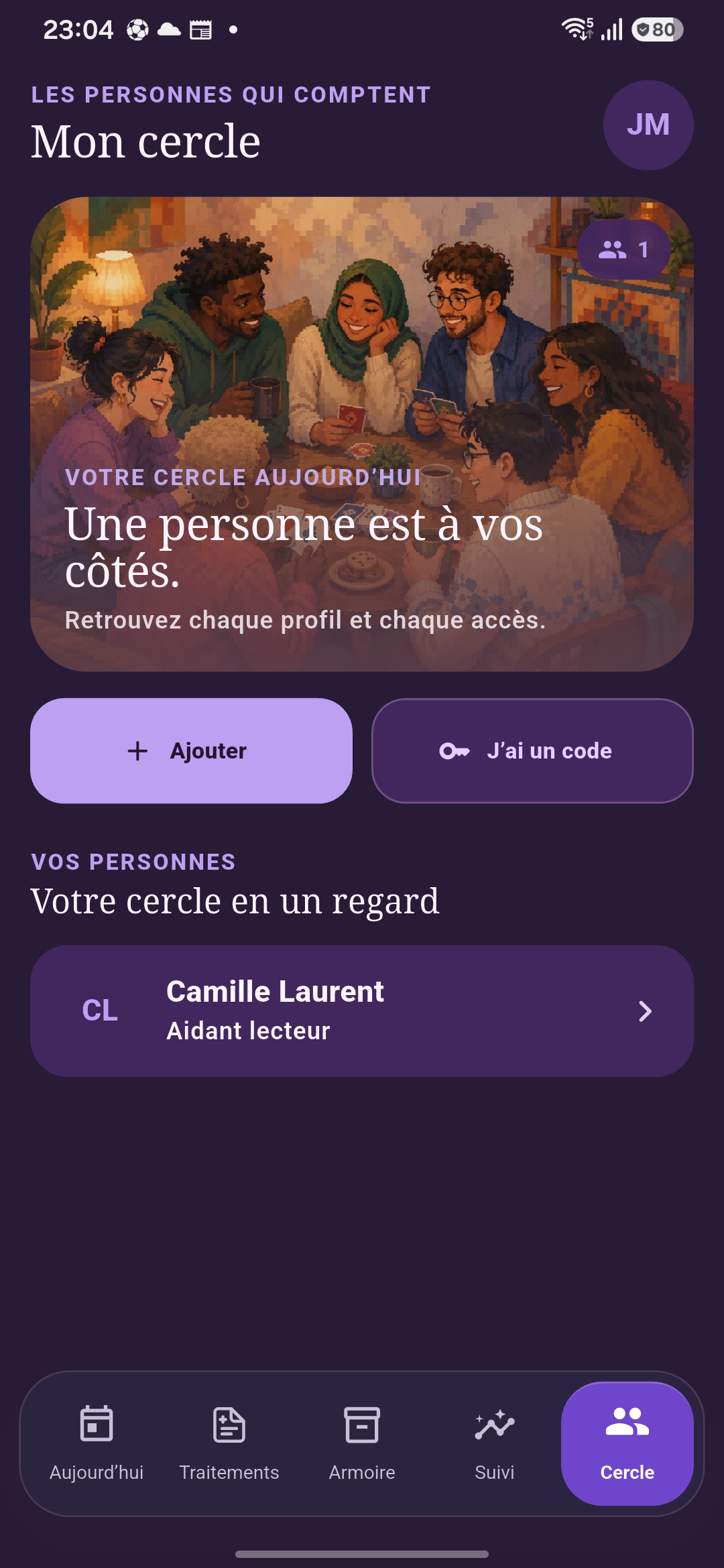
I received an invitation code
In “Circle”, use “I have a code”, then review the person and access offered before confirming. A declined or failed invitation is not an established relationship.
Kwesī organises your tracking. Quantities and instructions for taking medication remain those provided as part of your care. The screenshots illustrate features; they are not a single continuous recording of the process. About the visuals
Back to discovering Kwesī